There are multiple ways to rename sheets, and most users will right click to choose Rename, which actually wastes a lot of time. The best way is to just click twice, then you can rename it directly.
Showing posts with label EXCEL. Show all posts
Sunday, 10 April 2016
Saturday, 9 April 2016
EXCEL : One Click to Get More Status
Most users know how to check the data status in the bottom of an Excel sheet, like Average and Sum Value. However, do you know you can move the pointer to the bottom tab and right click to get more status, as shown below?
Friday, 8 April 2016
EXCEL : Speed up Inputting Complicated Terms with AutoCorrect
If you need to repeat the same value and it is complicated to input, the best way is to use the AutoCorrect function, which will replace your text with the correct text. Take my name, Liza Brown, for example, which can be replaced by LZ. Therefore, every time I input LZ, it can autocorrect to Liza Brown. Go to File->Options->Proofing->AutoCorrect Options and input Replace text with correct text in the red rectangular area, as below.
Thursday, 7 April 2016
EXCEL : Add More Than One New Row or Column
You may know the way to add one new row or column, but it really wastes a lot of time if you need to insert more than one of these by repeating this action X number of times. The best way is to drag and select X rows or columns (X is two or more) if you want to add X rows or columns above or left. Right click the highlighted rows or columns and choose Insert from the drop down menu. New rows will be inserted above the row or to the left of the column you first selected.
For more click here
EXCEL : Transpose Data from a Row to a Column
You would use this feature if you want to transpose data to get a better display; however, retyping all data would be the last thing you would need to do if you know how to use the Transpose function in Paste. Here’s how: copy the area you want to transpose, move the pointer to another blank location. Go to Home->Paste->Transpose, please note that this function won’t activate until you copy the data first.

For more click here
Read More »
For more click here
Wednesday, 6 April 2016
EXCEL:Create a New Shortcut Menu
Generally there are three shortcuts in the top menu, which are Save, Undo Typing and Repeat Typing. However, if you want to use more shortcuts, like Copy and Cut, you can set them up as follows:
File->Options->Quick Access Toolbar, add Cut and Copy from the left column to the right, save it. You will see two more shortcuts added in the top menu.
Tuesday, 5 April 2016
EXCEL : Compose Text with &
Complicated formulation is unnecessary, as long as you know how to use &. You can compose any text freely with this symbol. Below I have four columns with different texts, but what if I want to compose them to one value in one cell? First, locate the cell that is to show the composed result, use the formulation with & as shown in the screenshot below. Click Enter: all texts in A2, B2, C2 and D2 will be composed together to become LizaUSA25@ in F2.
For more click here
EXCEL : One Click to Select All
You might know how to select all by using the Ctrl + A shortcut, but few know that with only one click of the corner button, as shown in the screenshot below, all data will be selected in seconds.
For more click here
Monday, 28 March 2016
EXCEL:How to highlight cells based on length of text ?
With a simple LEN function in Conditional Formatting feature, you can quickly highlight the cells which text length in a certain characters.
1. Select the data range or the whole worksheet that you want to highlight the cells.
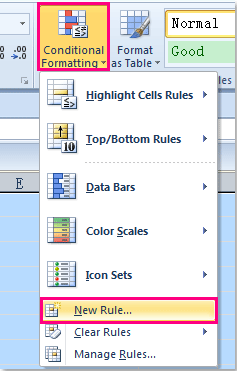
2. Click Home > Conditional Formatting > New Rule, see screenshot:

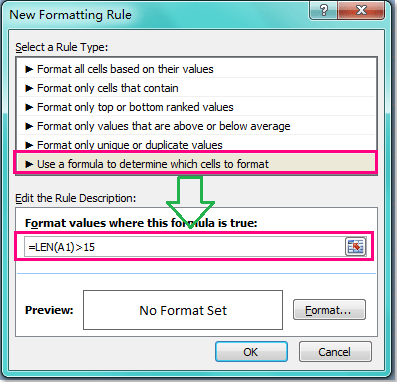
3. In the New Formatting Rule dialog, click Use a formula to determine which cells to format option, and then enter this formula =LEN(A1)>15 (A1 is the first cell which contains the value and >15 is the criteria that you want to base on, in this case is greater than 15 characters, you can change them as you need) into the Format values where this formula is true text box, see screenshot:

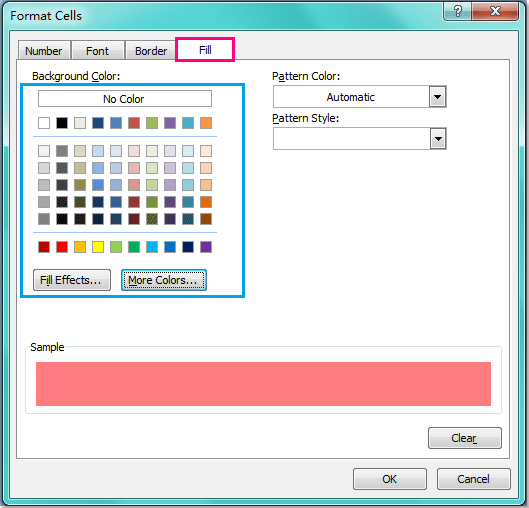
4. Then click Format button, and in the Format Cells dialog, choose one color you like under Fill tab, see screenshot:

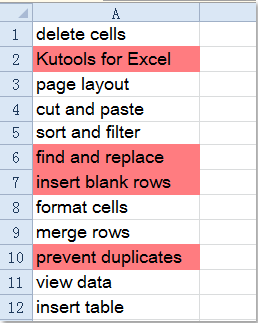
5. Then click OK > OK to close the dialogs, and all the cells which character length is greater than 15 are highlighted with your selected color at once.

Note: Conditional Formatting tool is a dynamic function, if you change the length of the text string, the color will be adjusted as well.
Wednesday, 16 March 2016
EXCEL : Keep Column Names Visible as You Scroll
Many Worksheets have Headers for each column.
As you scroll thru a worksheet it’s helpful to be
able to see those names. Here’s how.
- Select the row immediately below the row you want to
freeze.
- In the Window menu, click on Freeze Panes. Excel
will put a thick line under the row to freeze.
- To unfreeze the row, go to Window menu again and
click on Unfreeze Panes.
EXCEL : Selecting a Range of Cells
Selecting a long range of cells can be a pain. Here’s one trick that could help.
- Move the cell pointer to the starting cell.
- Press F8 to activate extend.
- Either use your arrow keys or mouse to click on
the ending row/column.
- All cells will be highlighted.
- Press Esc to end extend.
EXCEL : Change the case of cell contents - to UPPER, lower, Proper
Boss wants a report of top 100 customers, thankfully you
have the data, but the customer names are all in lower cases.
Fear not, you can
Proper Case cell contents with proper() formula.
Example: Use proper("pointy haired dilbert") to
get Pointy Haired Dilbert
Also try lower() and upper() as well to change excel cell
value to lower and UPPER case
For more tips & Tricks CLICK HERE
Monday, 14 March 2016
EXCEL : List of Microsoft Excel Shortcuts
Worksheet Shortcuts
Move to the next sheet in the workbook. . .[Ctrl] + [Page Down]
Move to the previous sheet in the workbook. . . . . . . . . . . . . . . . . . . . . . . . . . . . .[Ctrl] + [Page Up]
Select the current and next sheet.
To cancel selection of multiple sheets,
press [Ctrl] + PAGE DOWN or, to select
a different sheet, press [Ctrl] + PAGE UP. .[Shift] + [Ctrl] +[Page Down]
Select the current and previous sheet. . . .[Shift] + [Ctrl] + [Page Up]
Rename the current sheet
(Home, Format, Rename Sheet). . . . . . . . . .[Alt] [H] > [O] > [R]
Move or copy the current sheet
(Home, Format, Move or Copy Sheet...). . .[Alt] [H] > [O] > [M]
Move one cell up, down, left, or right. . . .Arrow Keys
Move to the edge of the current data
region.(Data region: A range of cells
that contains data and that is
bounded by empty cells or worksheet
borders.). . . . . . . . . . . . . . . . . . . . . . . . . . . . . . [Ctrl] + Arrow Key
Move to the beginning of the row. . . . . . .[Home]
Move to the beginning of the worksheet. [Ctrl] + [Home]
Move to the last cell on the worksheet,
in the bottom-most used row of the
rightmost used column. . . . . . . . . . . . . . . .[Ctrl] + [End]
Move one screen to the right. . . . . . . . . . . .[Alt] + [Page Down]
Move one screen to the left. . . . . . . . . . . . .[Alt] + [Page Up]
Scroll to display the active cell. . . . . . . . . .[Ctrl] + [Backspace]
Display the Go To dialogue box. . . . . . . . . .[Alt] > [H] > [FD] > [G]
Display the Find tab of the Find and
Replace dialogue box. . . . . . . . . . . . . . . . . . .[Alt] > [H] > [FD] > [F]
Display the Replace tab of the Find
and Replace dialogue box. . . . . . . . . . . . . . .[Alt] > [H] > [FD] > [R]
Moves one cell to the right in a
worksheet.Moves between unlocked
cells in a protected worksheet.
Moves to the next option or option
group in a dialogue box. . . . . . . . . . . . . . . .[Tab]
Move from top to bottom within the
selected range. . . . . . . . . . . . . . . . . . . . . . . . .[Enter]
Move from bottom to top within the
selected range. . . . . . . . . . . . . . . . . . . . . . . . .[Shift] + [Enter]
Move from left to right within the
selected range. If cells in a single
column are selected, move down. . . . . . . .[Tab]
Move from right to left within the
selected range. If cells in a single
column are selected, move up. . . . . . . . . . .[Shift] + [Tab]
Move clockwise to the next corner of
the selected range. . . . . . . . . . . . . . . . . . . . .[Ctrl] + [.]
In nonadjacent selections, switch to
the next selection to the right . . . . . . . . . . [Ctrl] + [Alt] + [Right Arrow]
Switch to the next nonadjacent
selection to the left. . . . . . . . . . . . . . . . . . . .[Ctrl] + [Alt] + [Left Arrow]
Selections
Select the entire column. . . . . . . . . . . . . . .[Ctrl] + [Space]
Select the entire row. . . . . . . . . . . . . . . . . . .[Shift] + [Space]
Selects the entire worksheet. . . . . . . . . . . .[Ctrl] + [A]
If the worksheet contains data,
[Ctrl] + A selects the current region.
Pressing [Ctrl] + A a second time selects
the current region and its summary
rows. Pressing [Ctrl] + A a third time
selects the entire worksheet.
When the insertion point is to the right
of a function name in a formula, displays
the Function Arguments dialogue box
With multiple cells selected, select
only the active cell. . . . . . . . . . . . . . . . . . . . .[Shift] + [Backspace]
With an object selected, select all
objects on a sheet. . . . . . . . . . . . . . . . . . . . . .[Ctrl] + [Shift] + [Space]
Alternate between hiding objects,
displaying objects, and displaying
placeholders for objects. . . . . . . . . . . . . . . .[Ctrl] + [6]
Select the current region around the
active cell (the data area enclosed
by blank rows and blank columns).
In a PivotTable report, select the
entire PivotTable report. . . . . . . . . . . . . . . .[Ctrl] + [Shift] + [*]
Select the array containing the active cell. [Ctrl] + [/]
(Array: Used to build single formulae
that produce multiple results or that
operate on a group of arguments that
are arranged in rows and columns.
An array range shares a common
formula; an array constant is a group
of constants used as an argument.)
Select all cells that contain comments. . .[Ctrl] + [Shift] + [O]
In a selected row, select the cells that
don’t match the value in the active cell. .[Ctrl] + [\]
In a selected column, select the cells
that don’t match the value in the
active cell. . . . . . . . . . . . . . . . . . . . . . . . . . . . .[Ctrl] + [Shift] + [|]
Select all cells directly referenced by
formulae in the selection. . . . . . . . . . . . . . .[Ctrl] + [[]
Select all cells directly or indirectly
referenced by formulae in the selection. .[Ctrl] + [Shift] + [{]
Select cells that contain formulae
that directly reference the active cell. . . .[Ctrl] + []]
Select cells that contain formulae that
directly or indirectly reference the
active cell. . . . . . . . . . . . . . . . . . . . . . . . . . . . .[Ctrl] + [Shift] + [}]
Select the visible cells in the current
selection. . . . . . . . . . . . . . . . . . . . . . . . . . . . . .[Alt] + [;]
Add another range of cells to the selection. [Shift] + [F8]
Extend the selection by one cell. . . . . . . . .[Shift] + Arrow Key
Extend the selection to the last
nonblank cell in the same column
or row as the active cell. . . . . . . . . . . . . . . .[Ctrl] + [Shift] + Arrow Key
Extend the selection to the beginning
of the row. . . . . . . . . . . . . . . . . . . . . . . . . . . . .[Shift] + [Home]
Extend the selection to the beginning
of the worksheet. . . . . . . . . . . . . . . . . . . . . . .[Ctrl] + [Shift] + [Home]
Extend the selection to the last used
cell on the worksheet (lower-right corner). .[Ctrl] + [Shift] + [End]
Extend the selection down one screen. . .[Shift] + [Page Down]
Extend the selection up one screen. . . . . .[Shift] + [Page Up]
Extend the selection to the last
nonblank cell in the same column or
row as the active cell. . . . . . . . . . . . . . . . . . .[End] + [Shift] + Arrow Key
Extend the selection to the last used
cell on the worksheet (lower-right corner). .[End] + [Shift] + [Home]
Extend the selection to the last cell
in the current row. This key sequence
does not work if you have turned on
transition navigation keys (Tools menu,
Options command, Transition tab). . . . . .[End] + [Shift] + [Enter]
Extend the selection to the cell in the
upper-left corner of the window. . . . . . . . .[Scroll Lock] + [Shift] + [Home]
Subscribe to:
Posts (Atom)